

Sell a Zendra membership subscription at the counter by adding a subscription to an eligible cart item in Shopify POS. Once you add Zendra to your POS layout, staff can open it from a home screen tile or the cart item’s Add subscription action, see the amount due today and the recurring price, and complete checkout with the customer attached to the cart.
When you’d use this
- A shopper joins your membership while visiting your store or event.
- Staff need to quote the first payment and renewal amount before checkout.
- You want to test a subscription plan before offering it in person.
Before you start
Shopify’s POS subscription requirements include POS Pro at the selling location, Shopify Payments, a subscription cancellation policy, and the Checkout » Ship to customer staff permission. The customer needs an email address and billing address. Physical subscription products also need a shipping address.
Update Shopify POS to version 10.15 or later for Zendra’s subscription picker. Shopify’s general minimum is 10.13, but Zendra’s cart action requires 10.15. Make sure the product is published to the POS sales channel, linked to a live Zendra plan, and has a subscription billing option. Shopify POS can’t sell subscription-only products, so leave Shopify’s Only show this product with these purchase options setting off for the product. To sell the membership only as a subscription, untick One-time payment under How should access be sold? on the Zendra plan instead. Online shoppers then see only your subscription options, and the product stays available in POS. With one-time payments off, an order without a subscription doesn’t create a membership, so staff should always choose a subscription in the picker before checkout.
How to use it
1. Add Zendra to your POS layout
Zendra’s POS screens don’t appear until you add them to your POS layout. The home screen tile and the cart item action are turned on separately, and the cart item action can only be turned on from your Shopify admin.
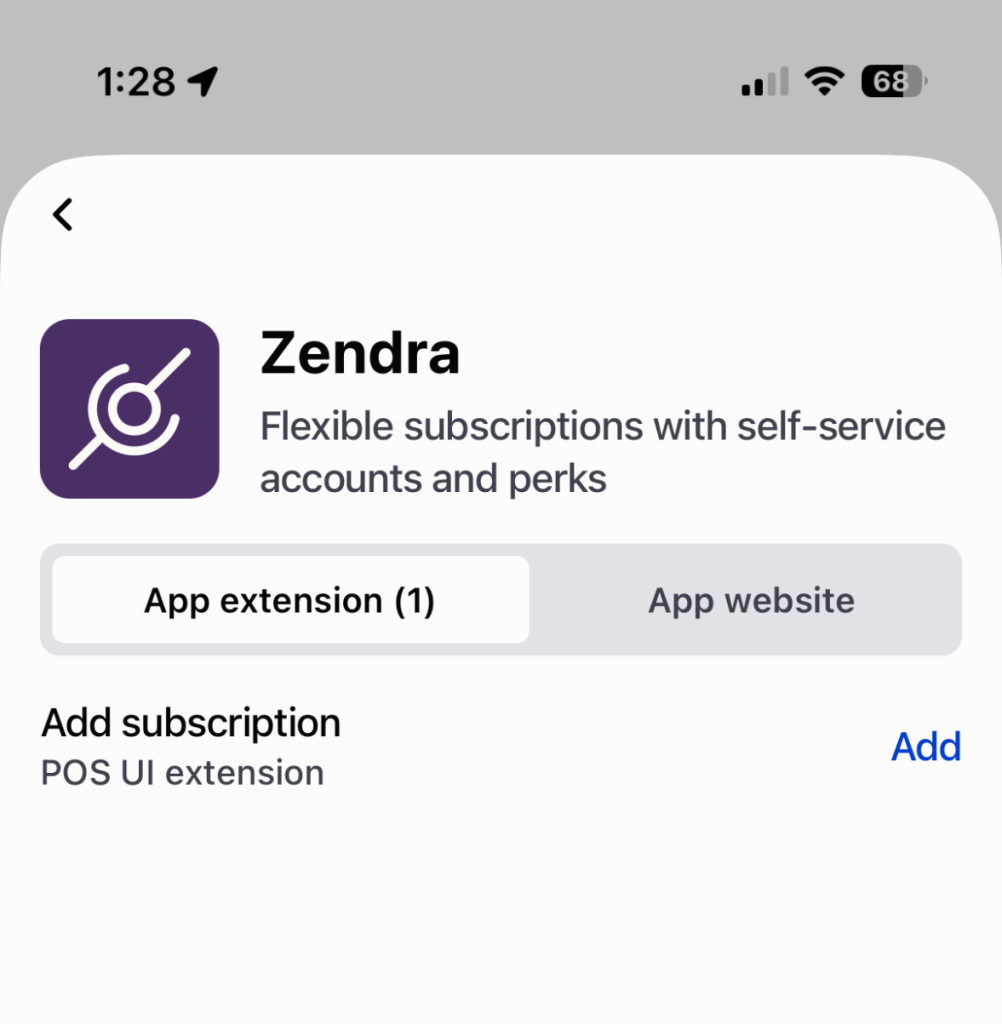
Add the Memberships tile. In Shopify POS, tap Add tile » App, choose Zendra, then tap Add next to Add subscription.

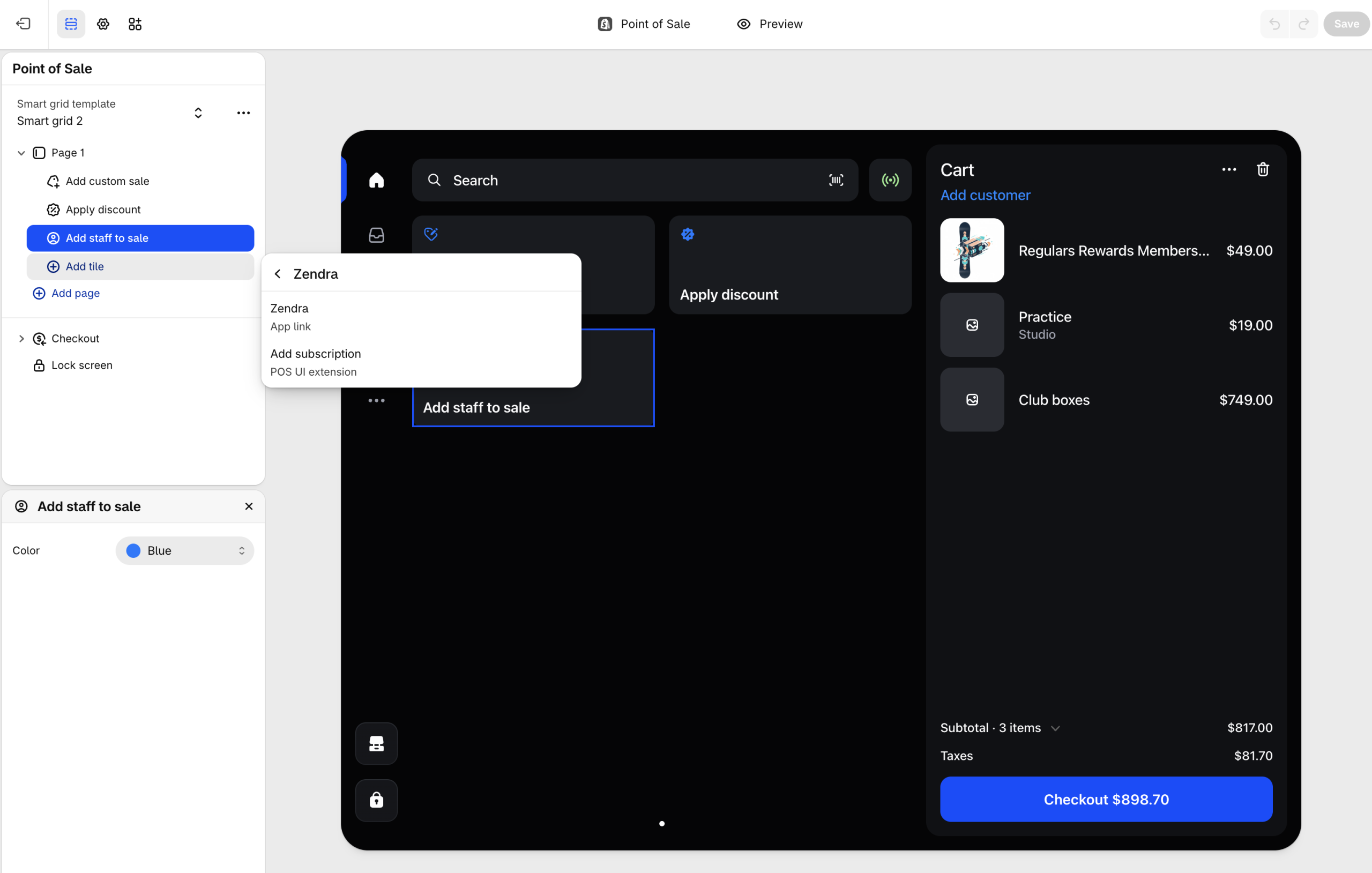
You can also add the tile from your Shopify admin. Go to Point of Sale » Settings » Customize to open the POS layout editor, click Add tile on the page you want, then choose Zendra » Add subscription and click Save.
Turn on the cart item action. In the POS layout editor (Point of Sale » Settings » Customize), open the Apps section from the icons at the top left. Under Zendra, select Add subscription, switch on Activate on: Cart line item details, then click Save. While you’re there, also select Show member details about the customer so staff can see member details in POS.

After changing the layout, force-quit the Shopify POS app on each device and open it again so it loads Zendra’s screens.
2. Add an eligible product to the cart
In Shopify POS, add the product that grants membership. If it has a selling plan, POS shows Purchase options available under the cart item.
3. Open Zendra’s subscription picker
Use either route:
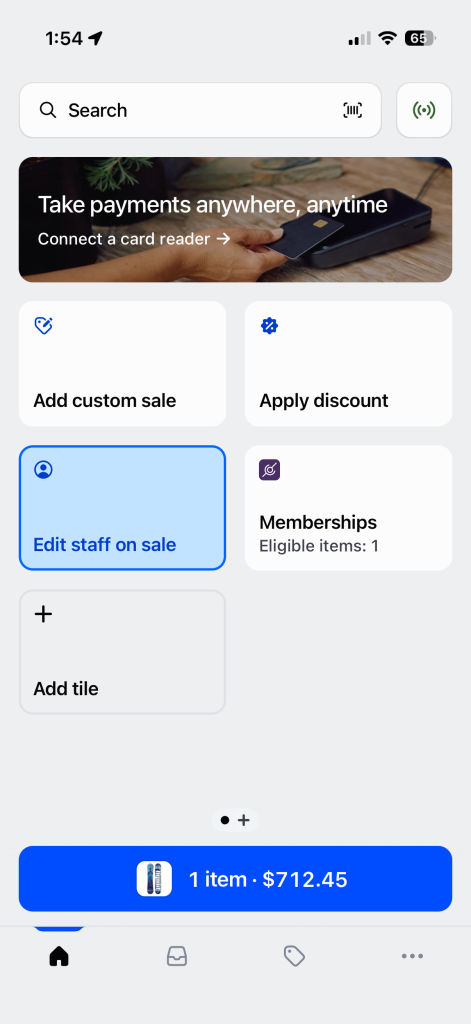
- From the tile: tap the Memberships tile on the POS home screen. The tile shows how many cart items are eligible, and it opens the picker for all of them.
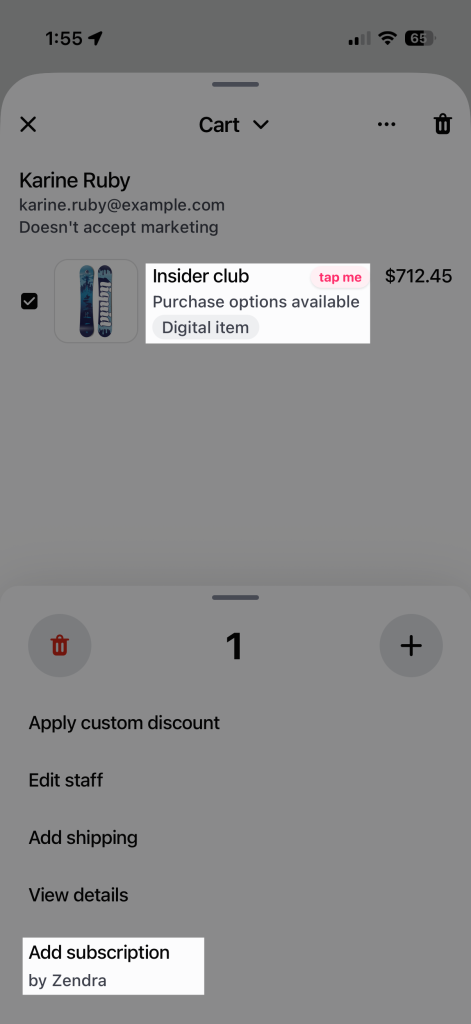
- From the cart item: tap the item in the cart, then tap Add subscription (by Zendra) to open the picker for that item.
4. Choose the membership subscription
Select a Zendra subscription under the membership plan’s name. Each option shows what to quote at checkout: for example, Free today, then $240 every year or $35 today, then $25 every month. A trial or signup fee can make the first payment differ from renewals. Choose the option the customer wants, then tap Done.
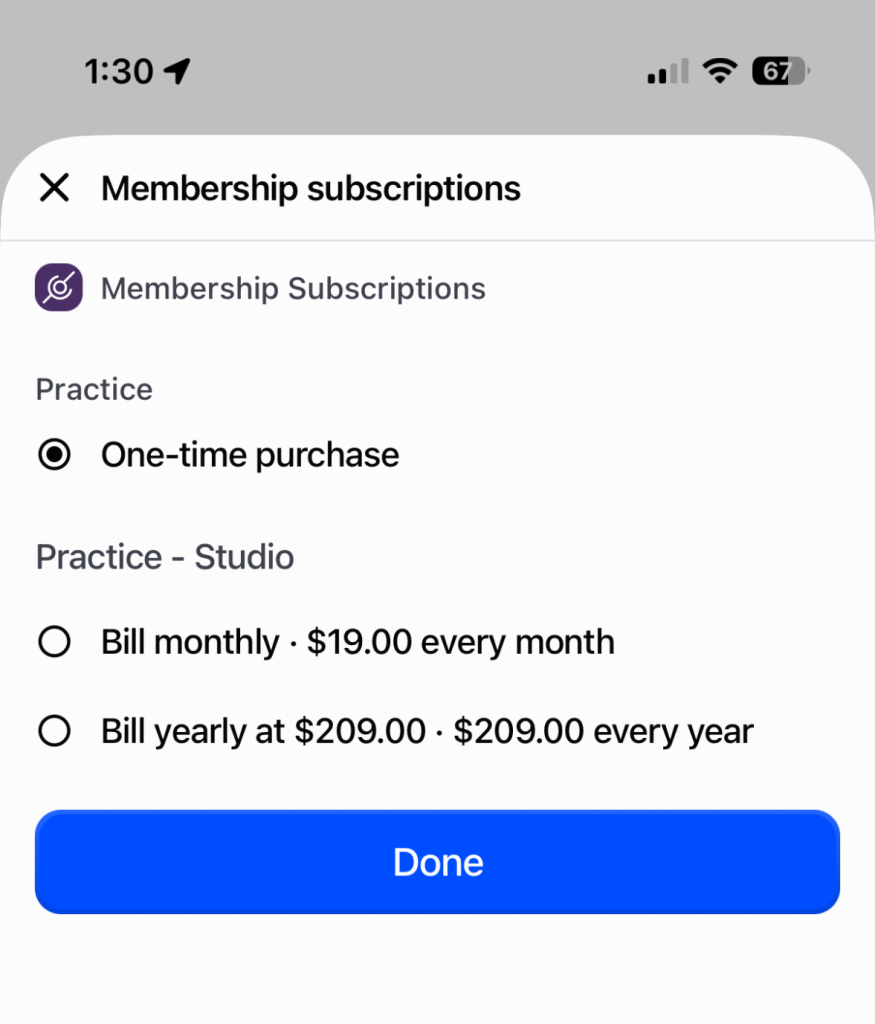
The picker can also show One-time purchase. Selecting it removes a subscription from that item. If another app’s subscription is already selected, choosing a Zendra plan replaces that selection.
5. Add the customer and check out
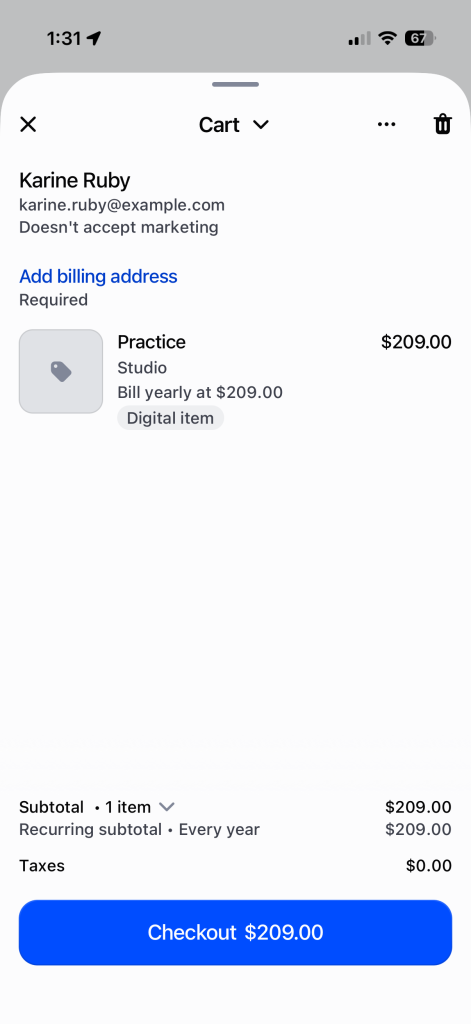
The cart item now shows its billing option, and the cart shows the recurring subtotal. Attach the customer to the cart and confirm their email and billing address. Tap Checkout, take a card or supported digital wallet payment, and let the customer review the subscription and cancellation policy. Shopify creates the subscription contract at checkout; Zendra then creates the membership from the paid order, just as it does for an online subscription sale.
Test your plan before your first sale
A membership granted manually from a Shopify customer page is complimentary. It has no subscription contract or saved payment method, so it does not test renewal billing.
For a no-charge billing test, use Shopify Payments test mode at an online checkout and check that the resulting Zendra membership has the expected order, price, and next renewal date. Shopify Payments test mode does not work with POS card readers. Turn test mode off when you’re done. An online test checks the plan’s billing setup; run a separate live POS sale if you need to test the in-person screen and hardware.
You can run a live POS sale with a real card and refund the membership line item afterward. That is a real charge, and processing fees may not be returned. Zendra ends a membership when its access-granting line item is refunded, or when the entire order that granted it is canceled. A refund of an unrelated item or a goodwill amount does not end the membership.
POS limits to know
- A subscription order total must be greater than zero, even when the subscription has a free trial.
- POS doesn’t support split payments, offline checkout, pickup, or ship-and-carry-out for subscription orders.
- Cash and gift cards can’t pay for subscription orders. Use a supported card reader or Tap to Pay.
- Create and edit plans in Zendra in your Shopify admin; POS is for selling existing plans.
Common issues
- Add subscription is missing from the cart item. Turn on Cart line item details for Zendra’s Add subscription in the POS layout editor (step 1), then force-quit and reopen Shopify POS. Adding the tile doesn’t turn on the cart item action.
- “App failed to load” appears in the cart item menu. Check that you’ve finished step 1, then force-quit and reopen Shopify POS.
- Add subscription is greyed out. Update POS to version 10.15 or later, check that the product is published to POS, and confirm the Zendra plan is live with a subscription billing option.
- The product is missing from POS or can’t be sold as a subscription. Open the product in your Shopify admin and check its Purchase options section. If Only show this product with these purchase options is on, turn it off: POS can’t sell subscription-only products. To keep online sales subscription-only, untick One-time payment on the Zendra plan instead.
- There are no eligible items. Add a product linked to a live plan to the cart. Zendra only lists eligible cart lines and subscription billing options from Zendra.
- The picker asks for a customer. Attach a customer with an email and billing address before checkout.
- Cash isn’t offered. Shopify requires a card or supported digital wallet for a subscription order.
- A test card is declined in POS. Use an online test checkout; Shopify Payments test mode isn’t available for POS card readers.
Keep learning
- See member details in Shopify POS: check membership status at the counter.
- Create your first membership plan: set up a live plan and billing option.
- Managing members: inspect memberships, orders, and renewal dates.