Reprinted from the Zendra Field Journal
A membership page that tells you where things stand · Published November 10, 2026 · zendra.com/blog/membership-page/
A membership page that tells you where things stand
Zendra's membership page shows where each membership stands, each perk's status, and a timeline of its activity. Members can now pause on their own, too.
- Author
- Beka Rice
- Published
- Reading
- 7 min

For years, the best membership system in a lot of businesses was a person at the front desk. Ask the manager of a climbing gym about one of their members and you won’t get statistics — you’ll get something closer to a story: she’s been coming since spring, froze her membership while she was traveling, and her card bounced last week but she sorted it out.
That’s how most questions about a member arrive. Nobody wants to know what’s in the status field; they want to know what’s going on with this person, and whether there’s anything they should do about it. Zendra’s rebuilt membership page is designed around those questions.
Every membership has a page that starts with where it stands
Open any membership in Zendra and the first thing you see is its situation, in plain words. When a membership needs your attention, a banner at the top says so: it’s paused and resumes on a given day, it’s ending, it’s in a free trial (and when the trial ends), a payment failed (with the reason, and when Zendra retries next), a gift hasn’t been claimed yet, or Zendra has flagged it as at risk of churning. When a cancelled membership is running out its billing period, the banner says who cancelled it (the member, someone on your team, or Shopify Flow) and any reason they gave, or that the automatic payment retries ran out.
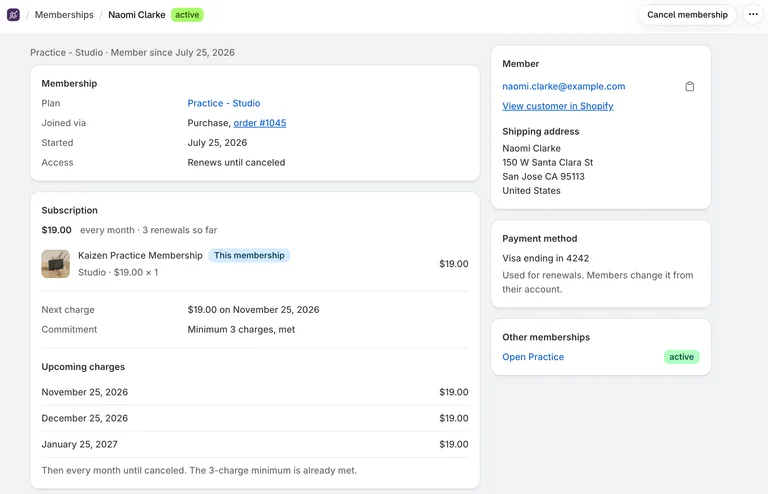
Below the banner, everything that belongs to the membership has its own card:
- Membership: the plan, when it started, how long access lasts, and how the member joined: a purchase, a gift, a customer account sign-up, Shopify Flow, or added by someone on your team.
- Subscription: what each charge includes, any signup fee, free trial, or minimum commitment (and whether it’s been met), the next charge, and the charges after it.
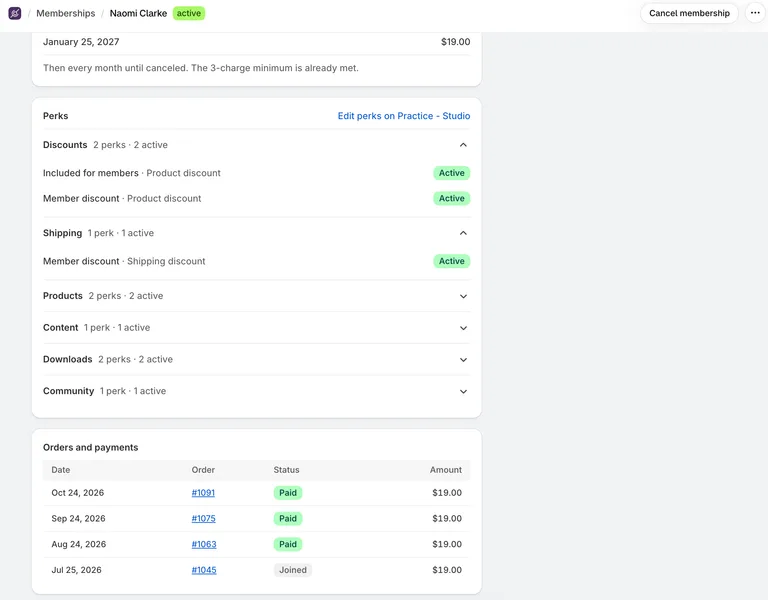
- Perks: every perk on the plan, grouped by type, each with its own status.
- Orders and payments: every order and payment for the membership in one list, including failed and retried payments and refunds.
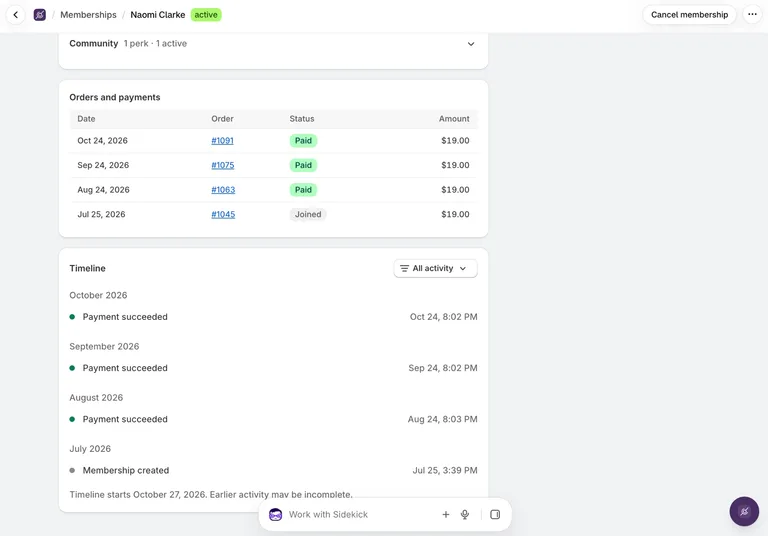
- Timeline: what’s happened on the membership, newest first, and who or what made each change.
- Member, payment method, and other memberships: contact details and a link to the customer in Shopify, the payment method used for renewals, and anything else the same person holds.
Why the status comes first
Most questions about a membership arrive as a complaint or a puzzle. “Why can’t I see the members-only collection? Why was I charged today? I thought I was a Gold member?” Answering them used to mean piecing together the plan, the perks, and the order history. Now the answer is usually on the page.
Each perk shows where it stands for this member: the date a dripped perk unlocks, how much of a download allowance they’ve used this period, a Discord account that isn’t connected yet, or a perk that’s been turned off. The orders and payments list shows which charges went through, which failed and why, and which were paid on a retry.
Now a member who asks a question will get a specific answer (“that perk unlocks on the 3rd”) instead of “let me look into it.” Being known is a large part of what people pay a membership for, and a quick, precise answer is one of the ways it shows.
Some questions are about what happened rather than where things stand, and those go to the Timeline card. It lists the membership’s activity, newest first: payments, status changes such as a pause or a plan change, and the emails Zendra sent the member, each marked Sent, Delivered, Bounced, or Marked as spam. Entries say who or what made a change (such as someone on your team by name, the member in their customer account, or Shopify Flow), and filters for Payments, Emails, and Status changes narrow it down. It’s the front desk’s version of events, in order: the pause for the trip, the payment that failed, and the one that went through.
Act on a membership from the same page
The page also has the actions that tend to follow those questions, and it only offers the ones that apply to the membership in front of you.
- Retry payment now. When a renewal fails and the member has fixed their card, you don’t have to wait for the next automatic retry. Zendra charges the failed payment straight away; reload the page a moment later to see the result. If it’s the last retry Zendra has left, it asks you to confirm first, since the membership ends if that payment fails too.
- Extend access. For a membership without a subscription that has an end date, add 1, 3, 6, or 12 months, or pick a new end date. It’s handy for a partner’s complimentary membership, a goodwill gesture, or a bridge membership while members move over from another platform.
- Change plan. For a membership without a subscription, move the member to another live plan. Their perks switch over right away, and the end date stays the same. Use it for complimentary upgrades or corrections to access.
- Cancel membership. For a membership with a renewing subscription, choose whether it ends at the end of the billing period (the member keeps access until then and isn’t charged again) or immediately. You can add a reason, which shows on the page until the billing period ends. Zendra doesn’t refund the current period, so refund the order in Shopify if you need to.
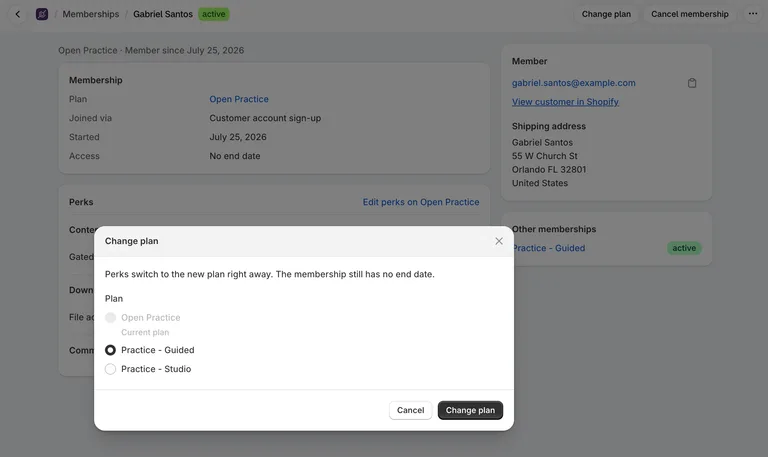
Extend access and Change plan appear only for memberships without a subscription, because a subscription’s billing stays tied to its plan. For extending or moving many memberships automatically, the Extend membership and Change membership plan actions in Shopify Flow do the same job.
Pause a membership until a date you choose
Sometimes the right answer to “I need a break” isn’t a cancellation. People sometimes travel for two months, recover from an injury, or just have a busy season, and you’re better off keeping them than trying to win them back later.
From the Memberships list in Zendra, select the memberships and choose Pause membership, then pick a Resume on date anywhere from tomorrow to 12 months away. Billing stops now, the member’s perks are off while they’re away, and a charge that would have fallen during the pause moves to the resume day. On that day, Zendra resumes the membership automatically, so nobody has to remember to switch it back on.
Members on a subscription can now pause from their own customer account, too, which gives a member who needs a break an option short of cancelling. They choose a resume date from tomorrow up to 12 months ahead, their perks and billing stop until then, and while they’re away they can change the date or resume early.
Member pausing is on by default. If you’d rather handle pauses yourself, go to Settings » General and, under Member pausing, disable Let members pause their membership. Members who are already paused can still resume. When a member pauses, the pause shows on the membership’s Timeline and the Membership paused trigger in Shopify Flow fires, so you can build an alert of your own (Zendra doesn’t email you about it).
Before you use it, you should know a few things:
- Pausing one membership pauses every membership billed on the same subscription, whether you start the pause or the member does.
- Zendra can’t move a charge that’s already due or being processed, so it won’t pause that subscription; try again once the charge has gone through. Members can’t pause while a payment is being processed, either.
- If a member’s last payment failed, the portal asks them to update their payment method before they can pause.
Membership lifecycle & billing recovery explains what a pause does to billing in more detail, and the member portal covers what members see.
Also new: emails that can’t be delivered get flagged
If an email to a member bounces permanently, or the member marks one of your emails as spam, Zendra now flags their address as undeliverable and stops sending to it. The member’s card on the membership page shows an Email undeliverable badge, and a new Email undeliverable tab on the Memberships page lists everyone affected. Update the customer’s email in your Shopify admin, and Zendra uses the new address from then on.
It matters for failed payments, too: a payment-failure notice sent to an address that doesn’t work never reaches the member, so it’s worth checking that tab when a failed payment isn’t getting fixed.
While we looked into emails, we also made a small improvement to the member experience: the link to manage a membership in your member emails now opens that membership’s details in the member portal, rather than the account home. A new membership.discord_url variable links members straight to their Discord access page. Email notifications lists every variable.
Where to find it
Click Members in Zendra and open any membership. There’s nothing to turn on. For the full walkthrough of the page and each action, see Managing members in the docs.
The front desk that remembered everyone was never about the software.