

Zendra connects your membership data to Shopify Sidekick, so you can ask questions about your program in plain language and get answers right inside Shopify — no reports to dig through, no switching tabs.
This works on every Zendra plan, with no setup or configuration required: once Zendra is installed, these capabilities are available to Sidekick automatically.
When you’d use this
- Ask about your membership program in plain language.
- Check member status, revenue, or activity without building a report.
- Get answers inside the Shopify admin instead of switching tabs.
What you can ask
Sidekick can pull the following from Zendra:
- At-risk members — who’s approaching expiry or showing churn risk, so you can act before they lapse.
- Member lookup — the membership details for a specific customer (plan, status, dates).
- Membership revenue — how much your membership program is bringing in.
- Membership stats — program-wide numbers like active members and how they’re trending.
- Plan breakdown — how members are distributed across your plans.
- Member search — find members matching what you’re looking for.
How to ask
- Open Sidekick in your Shopify admin.
- Ask a question about your membership program in plain language.
- Sidekick pulls the answer from Zendra and shows it inline, with links back into Zendra where relevant.
Example questions
- “Which members are at risk of churning this month?”
- “What’s the membership status for jordan@example.com?”
- “How much revenue is my membership program generating?”
- “How many active members do I have, and how are they split across plans?”
- “Show me members on the Gold plan.”
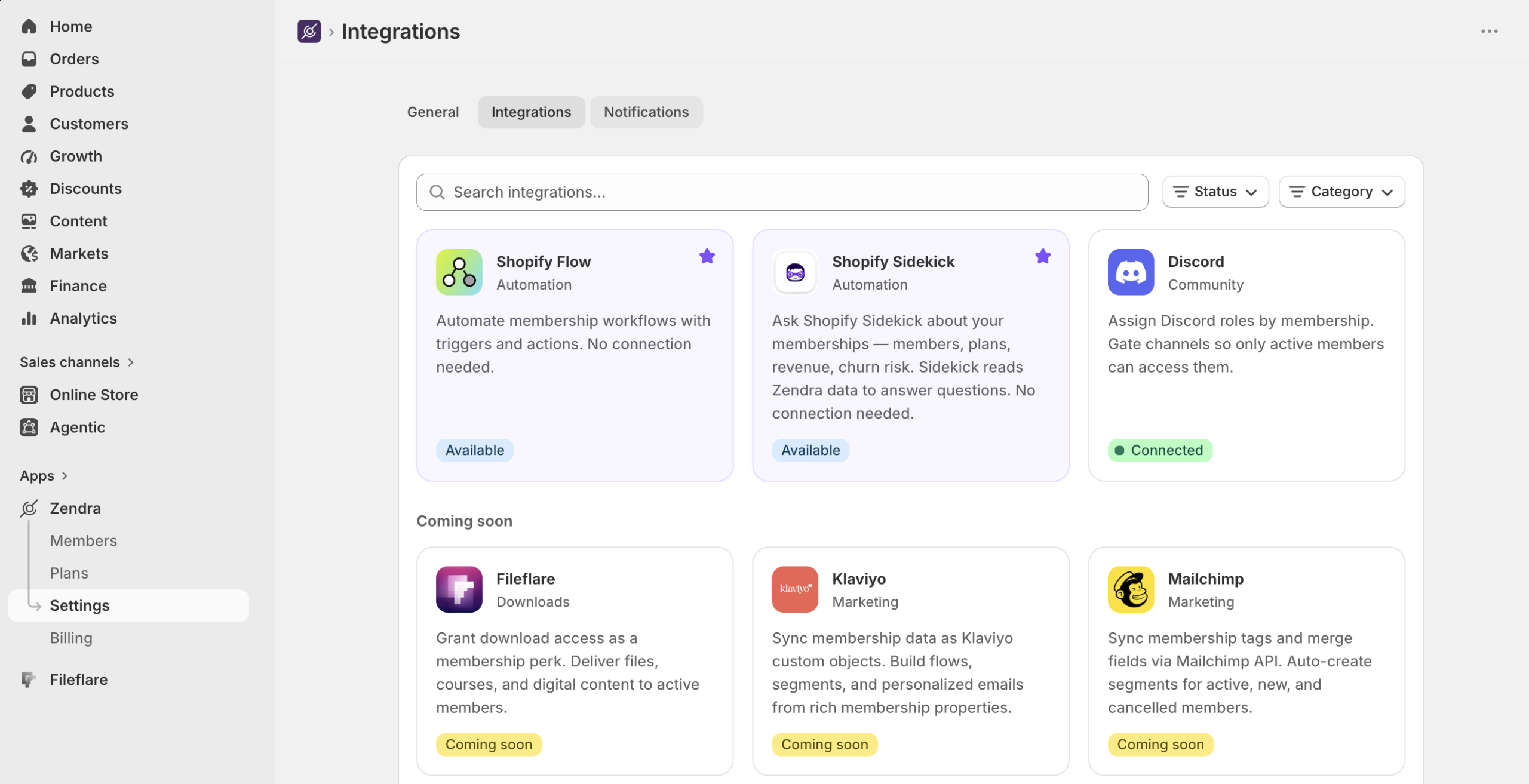
Find it in Settings » Integrations
You can also see the Shopify Sidekick connection from inside Zendra: go to Settings » Integrations and open the Shopify Sidekick entry for a detail view of the connection. This is a good first stop if you want to confirm the integration is active before asking Sidekick a question.
Good to know
- Sidekick answers reflect your current Zendra data.
- Sidekick reads your membership data but doesn’t change it. To design or change plans with AI, use Zendra Assistant inside Zendra. It can also hand you a ready-made Sidekick prompt to write the listing for a membership product.
- Availability of Sidekick itself is controlled by Shopify; if you don’t see Sidekick in your admin, it may not be enabled for your store yet.
Common issues
- Sidekick doesn’t know about your members. Confirm Zendra is installed and has finished its initial sync.
- Answers seem off. Ask about a specific plan by name, or rephrase the question more concretely.