

Zendra automatically makes theme modifications to protect member content, showing restriction messages to your guests or non-members when relevant. However, there are two main changes that you must make to show membership details on your website:
- Add a theme app block to show purchase options in your product forms, allowing customers to select subscription or recurring billing options.
- Add a customer account extension block, so that your member portal can be shown to logged in members.
The Zendra onboarding checklist will walk you through adding these to get started, and this document will show you some additional customizations or changes that are possible.
When you’d use this
- Add the membership purchase widget to product pages.
- Surface membership details in the customer account.
- Do it without writing custom code.
Product membership widget
The membership widget can be added to your product pages as part of your purchasing form. We recommend showing the membership widget after your variant selector, before the add-to-cart button.
This widget can show one-time purchase options as well as any billing plans you’ve created for the membership. Customers can select their preferred billing plan, and see the benefits of subscribing.

This area is a great place to show benefits of subscribing or becoming a member! Be sure to list some of the general benefits of membership, as this widget content will be shown on all membership purchases (regardless of plan).
Advanced styling & customization
For developers: If you want to show specific benefits for a product or plan, we recommend using a product metafield with benefits, then adding this as a dynamic content source to display them here.
As for styling, you can add custom CSS to your theme settings, or to the css files in your theme to further style the Zendra membership widget. For example, you can style the list of benefits offered to members — here’s an example that will use green checkmarks for each list item instead of bullets (you could implement a similar customization to include icons of your choice):
.zendra_membership_widget .zendra_membership_widget_benefits ul {
  list-style-type: none;
  padding-inline-start: 0px;
}

.zendra_membership_widget .zendra_membership_widget_benefits ul li:before {
  content: "\2713";
  margin-right: 8px;
  color: #3BB273;
}
Variant-aware plans
The membership block reads plan data per product variant, so the billing options and benefits it shows can differ by the variant a shopper selects. If a product offers different membership plans or billing options across its variants, the widget updates to match the chosen variant.
You can place more than one membership block on the same page, and each block pre-selects the plan for the product’s default variant. The widget’s text is fully translated across every language Zendra supports.
Customer account extension
You can modify the customer account in Shopify by going to Online store > Edit theme. In the theme customizer, you can adjust what you’re editing to view Checkout and customer accounts.
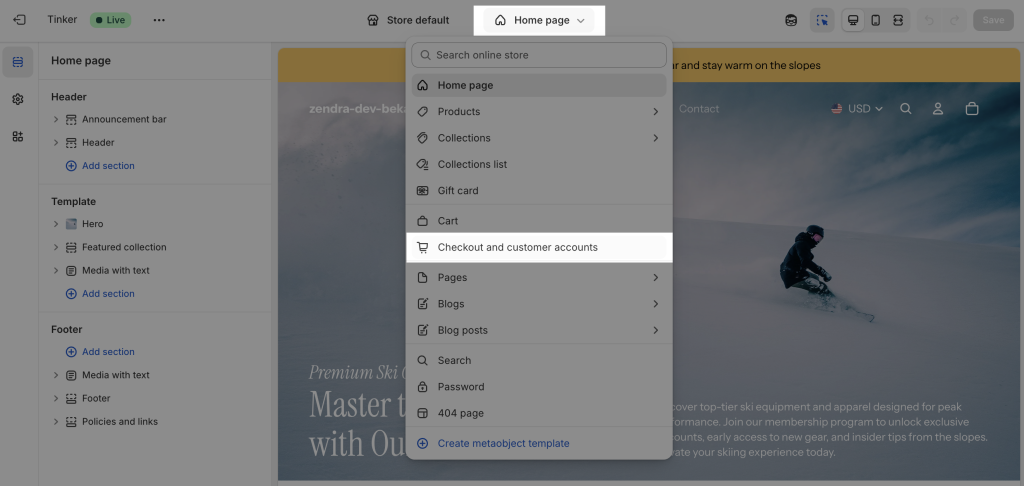
You can then toggle between checkout and the customer account area in the same place. If you missed adding the member portal during onboarding, you can add it here! The Memberships area in the customer account will change depending whether the customer is a member or not:
- If the customer has not become a member, they will see an empty state, prompting them to become a member, with a link to shop.
- If the customer is a member, they will see a set of cards for each membership they have active.
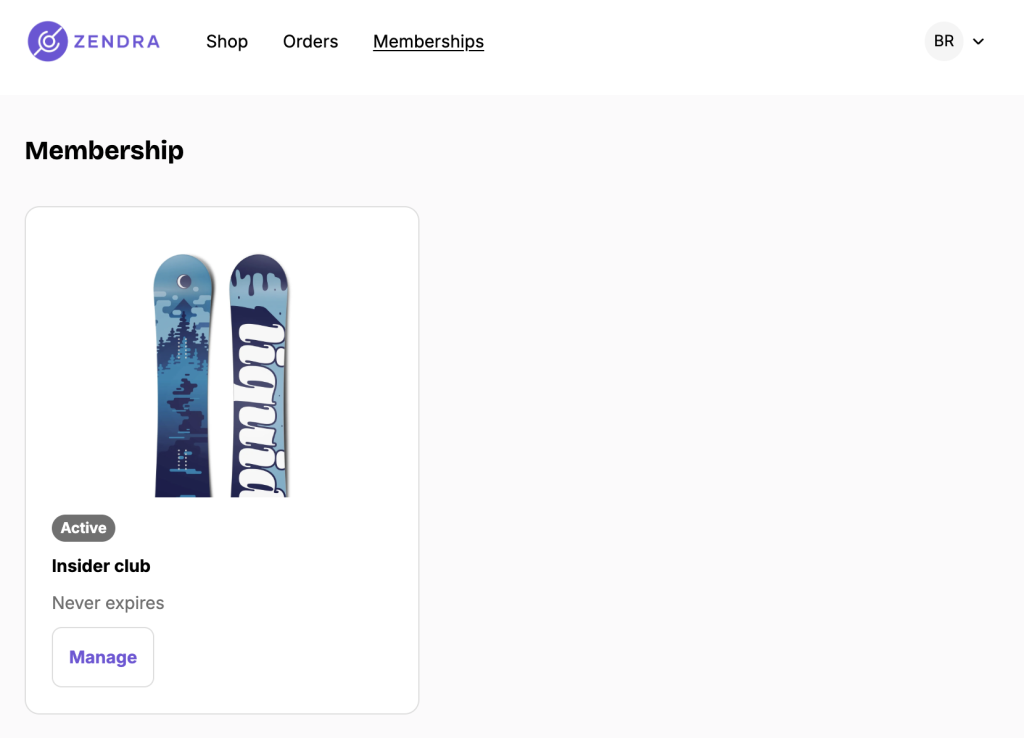
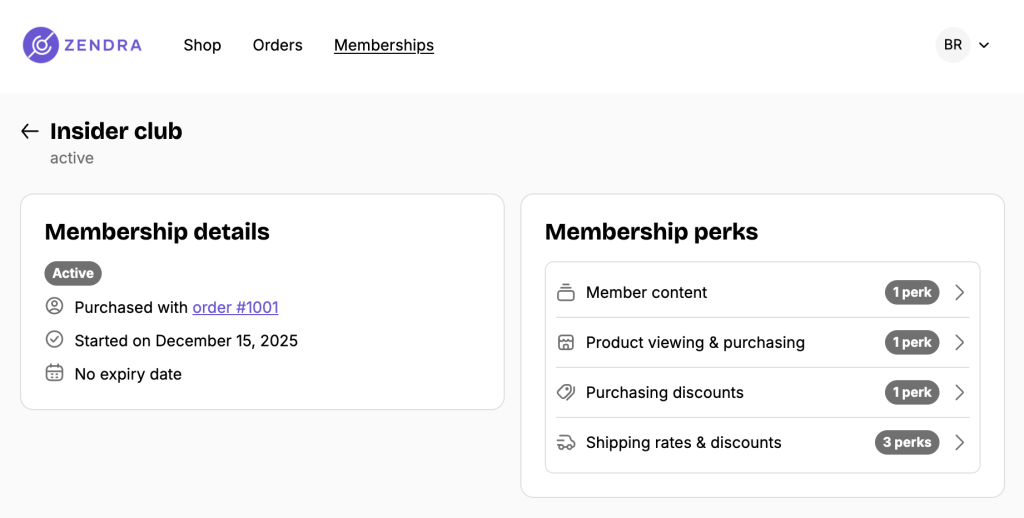
Members can click Manage on a membership card to open its details. The Overview tab shows status, billing details, the next order, and perks. For subscriptions, members can also update their payment method from the portal if they need to switch cards or their current card expires.
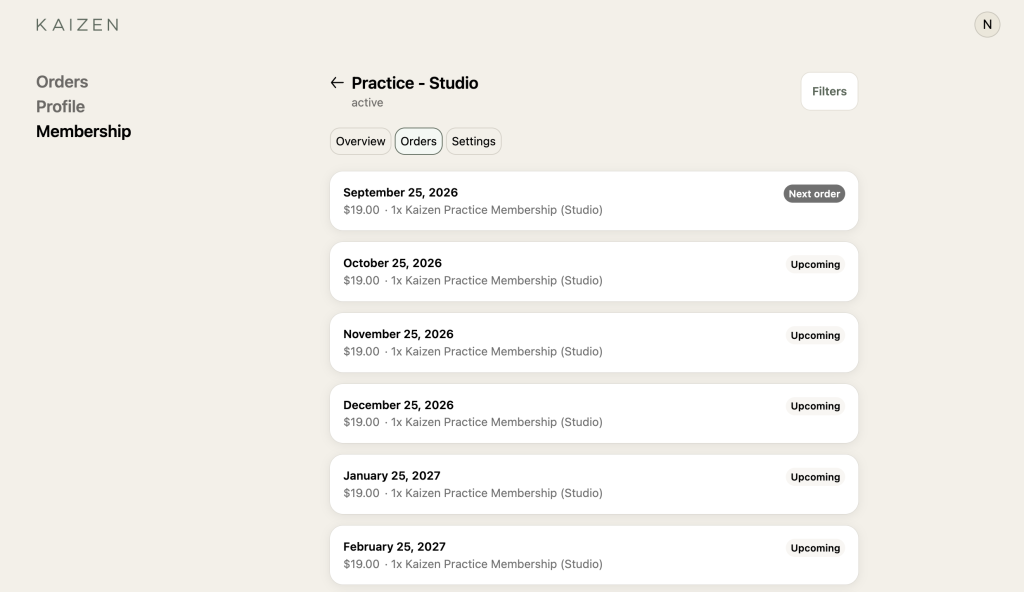
Open Orders and click Filters to switch between upcoming and past order cards.
In Membership perks, click Filters. Under Access type, choose All, Immediate access, or Delayed access, then click Apply.
Common issues
- The widget isn’t showing. Add the Zendra app block in the theme editor on the relevant template.
- The styling looks off. The blocks inherit your theme’s styles — adjust them in the theme editor.