

Hand someone a library card and you haven’t given them a book; you’ve given them the shelf. Book clubs work from the other direction. Book of the Month has run on a monthly pick since 1926, so belonging there means a fresh choice arriving on a schedule. In both, what a member receives belongs to them, not to a single purchase.
On Shopify, digital downloads have mostly worked like a cash register. The file belongs to an order, and access stays attached to that receipt. That’s the right model for selling a file. It’s an awkward one for a membership, though, because what you’re selling is ongoing access. A file you hand out as a perk should follow the member, not an order they placed months ago.
Give members digital downloads with their membership
Zendra now connects to Fileflare, our Shopify digital downloads app. Once the two are connected, any membership plan can include files as a perk, and members find the files their membership includes on a Downloads page in their Shopify customer account. Zendra decides who gets which files and when; Fileflare stores, protects, and serves them. (Running a Fileflare store already? Our Fileflare post covers the integration from the file side.)
The integration is on for every Zendra store, so you’ll find the Fileflare card under Settings » Integrations.
Before you plan around it, three boundaries matter.
- Your files live in Fileflare, so that’s where you upload and organize them.
- Each plan can carry one File Access-type perk and one Free Downloads-type perk. (They can each include multiple files or assets, though.)
- And because access runs through the connection, disconnecting Fileflare from Zendra removes members’ access to their files until you reconnect, at which point it comes back.

Choose between a library and a book club
The integration adds two perk types that match those two models. File Access is the library card: a defined set of files the member can open for as long as they belong. Free Downloads is the book club: a number of picks from a pool you define. A plan can carry one of each, so a single membership can include a core library and a monthly pick.
File Access gives members the whole shelf
With File Access, members don’t choose anything. The files you’ve chosen appear on their Downloads page when the membership starts (or on schedule, if you set release delays). If you turn on Grant access to existing members, current members get them too; otherwise only people who join after the perk is live do. That lets you keep a new library as a reason to join, or roll it out to everyone who already belongs.
You pick the files in one of four ways:
- All files: every file in your Fileflare library, for an all-access pass.
- Specific files: only the files you choose.
- By file type: every file with the extensions you list, such as every PDF and DOCX for a template library.
- By product: every file Fileflare has attached to the products and variants you choose.
When you pick specific files, each one can carry its own release delay, a number of days, weeks, months, or years after the membership starts. That turns a course, a magazine archive, or a 12-week program into a schedule that unfolds with each member’s tenure, and members see upcoming files under Coming soon with the date they unlock.
Keep access after the membership ends decides whether former members hold on to their files; when it’s off, access ends with the membership. If you’d rather members browse your store than a file list, disable Show the file list in customer accounts, and they’ll get a Browse the store button instead.

Free Downloads lets members choose their own files
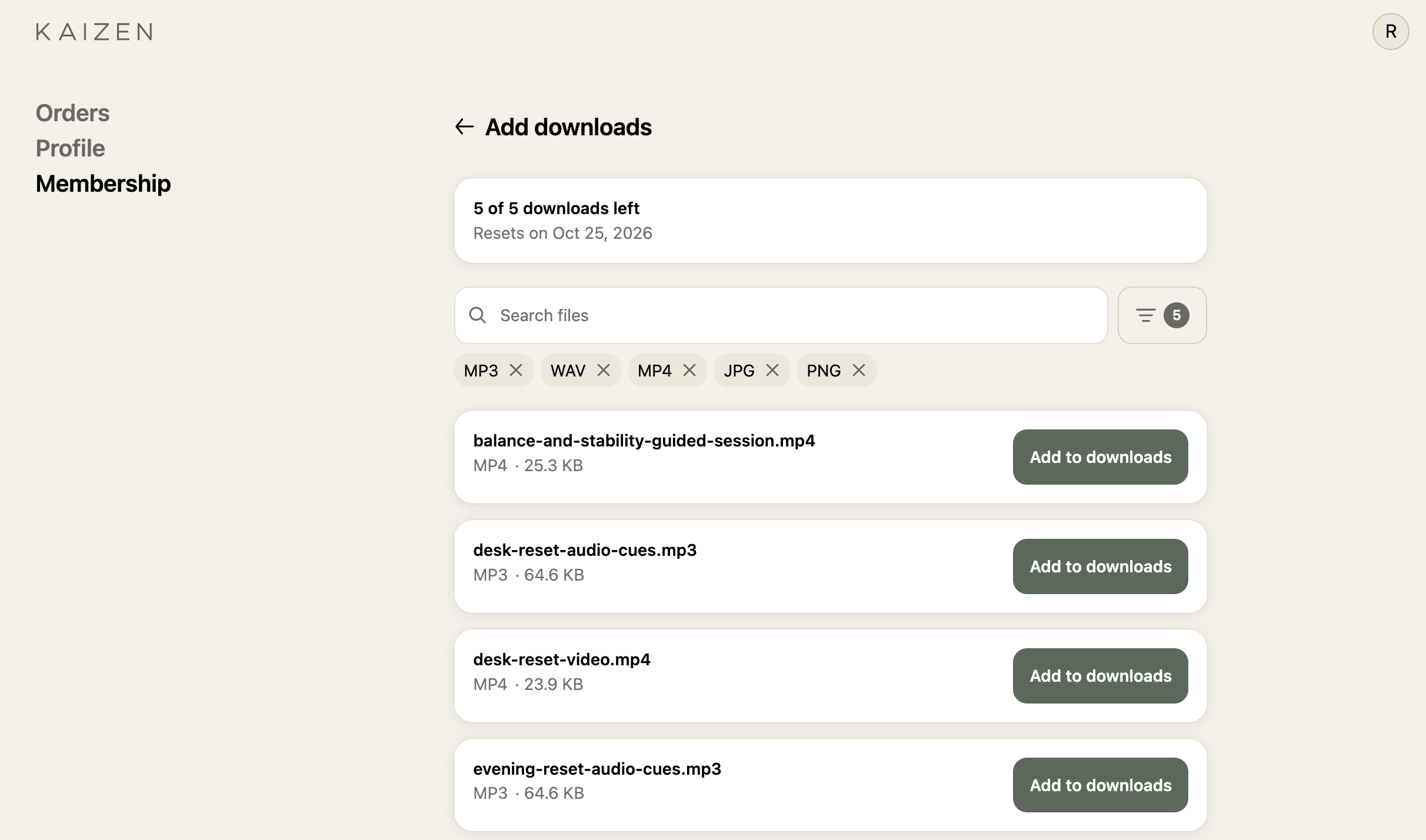
Free Downloads gives each member an allowance of files to claim for free from a pool you define the same four ways, or no limit at all. On plans that sell subscriptions, you can reset the allowance every billing cycle, so each renewal brings a fresh set of picks; unused picks don’t carry over. Plans that sell one-time memberships get a single allowance for the length of the membership.
Members claim files from an Add downloads page in their account, confirming each pick before it counts, and a file they already have never costs a second download. The pool also skips anything their File Access perk already gives them. When the allowance runs out, members can still buy anything else in your store the usual way, which makes a modest allowance work as a sampler for your catalog.
Why files make a good membership perk
A 15 percent member discount takes 15 percent off every order a member places, and that comes straight out of your margin. It’s a big part of why we argue that a membership should be more than a discount.
A file works differently: once a guide or a recording exists, handing it to one more member costs almost nothing extra (and Fileflare includes unlimited bandwidth on every plan). That’s rare for a perk: members value it highly, and it costs you next to nothing to give again.
The two perks also give members different reasons to stick around. A library with release delays rewards staying, since the longer someone belongs, the more the schedule has delivered. A resetting allowance rewards coming back, with fresh picks at every renewal.
And because each plan carries its own Fileflare perks, tiers can differ: three picks a month on your entry tier, the full library on the top one. When a member changes plans, their Downloads page updates to match the new plan’s perks. None of it works if the files aren’t worth having, though. If your catalog is a single PDF from three years ago, build the library before you build the perk.
What members see
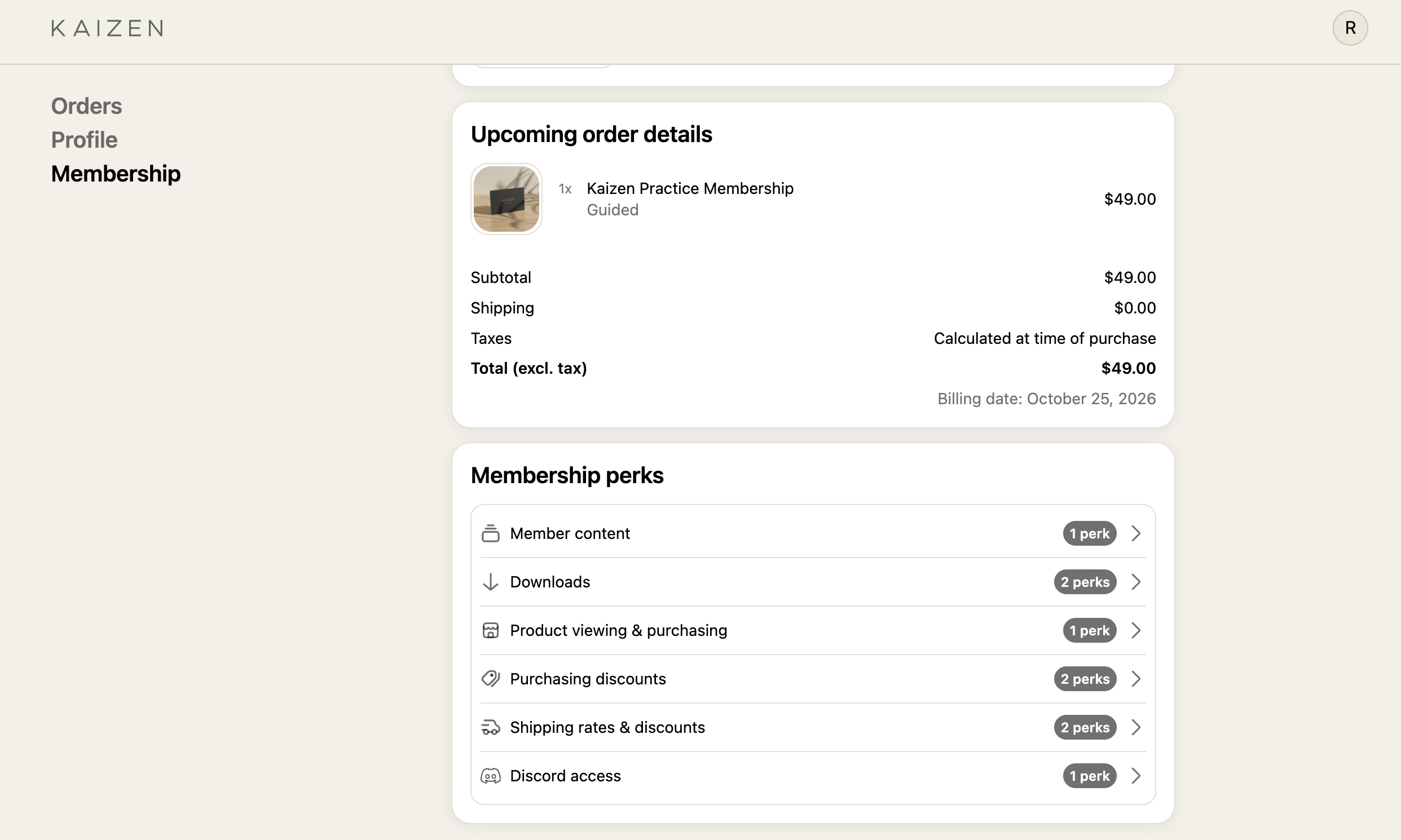
A Downloads entry sits on the Membership perks card in the member portal, even on Zendra’s Free plan, where the full perks overview isn’t included. The Downloads page shows any remaining allowance and its reset date, every file the member can open (with search, sorting, and a file type filter), and a Coming soon filter for files on a release delay.
What you need
- Any Zendra plan, including Free. Neither Fileflare perk is plan-gated in Zendra, release delays included. See Zendra pricing.
- Fileflare installed on the same store, on any paid Fileflare plan (Lite and up).
- Shopify’s new customer accounts, with Zendra’s member portal block added in the customer account editor.
Set it up
- Install Fileflare on the store that runs Zendra, choose any paid plan (Lite and up), and upload the files you want members to get. (If you’ll pick files by product, attach them to those products in Fileflare.)
- In Zendra, go to Settings » Integrations » Fileflare and connect. The two apps connect directly, with no API keys to copy.
- Open a membership plan, scroll to the Integrations section, and create a perk under File access or Free downloads (the plan page’s labels for File Access and Free Downloads).
- Choose which files the perk covers, set its options, and save.
- Check that the member portal block is on your customer account pages, then open your account as a test member to see the Downloads page.

For the full walkthrough, see the Zendra and Fileflare setup guide in the docs, or read more about the Fileflare integration and membership programs built on digital goods.
The perk belongs to the member now
A library card was never a coupon for one book. Digital files on Shopify have mostly lived on the other side of that line, attached to the receipt that delivered them. With Zendra and Fileflare connected, a file can sit on the membership side instead: part of what someone gets for joining, and waiting for them on their account page. Add release delays, or let free picks accumulate, and that shelf keeps filling the longer they stay.




Leave a Reply