

Connect Fileflare, our Shopify digital downloads app, and any membership plan can include files as a perk. Zendra decides which members get which files and when, and Fileflare stores and serves them. Members find their files on a Downloads page in the member portal.
This guide covers the Zendra side: connecting and setting up the perks. For the Fileflare side, including connection status in Fileflare, how member downloads are delivered, and download limits, see Zendra integration in the Fileflare docs.
Fileflare perks work on every Zendra plan, including Free. Fileflare itself needs to be installed on the same store, on a paid Fileflare plan (Lite or higher), and your files need to be uploaded there first.
When you’d use this
- Give members a library of guides, templates, recordings, or patterns for as long as they belong.
- Release a course or an archive one file at a time over a member’s first weeks or months.
- Let members pick a few free files each billing cycle, from a pool you choose.
- Offer different files on different tiers of the same program.
Connect Fileflare
1. Set up Fileflare
Install Fileflare on the store that runs Zendra, and choose a paid plan. Upload the files you want members to get. If you’ll choose files by product, attach them to those products in Fileflare.
2. Connect it to Zendra
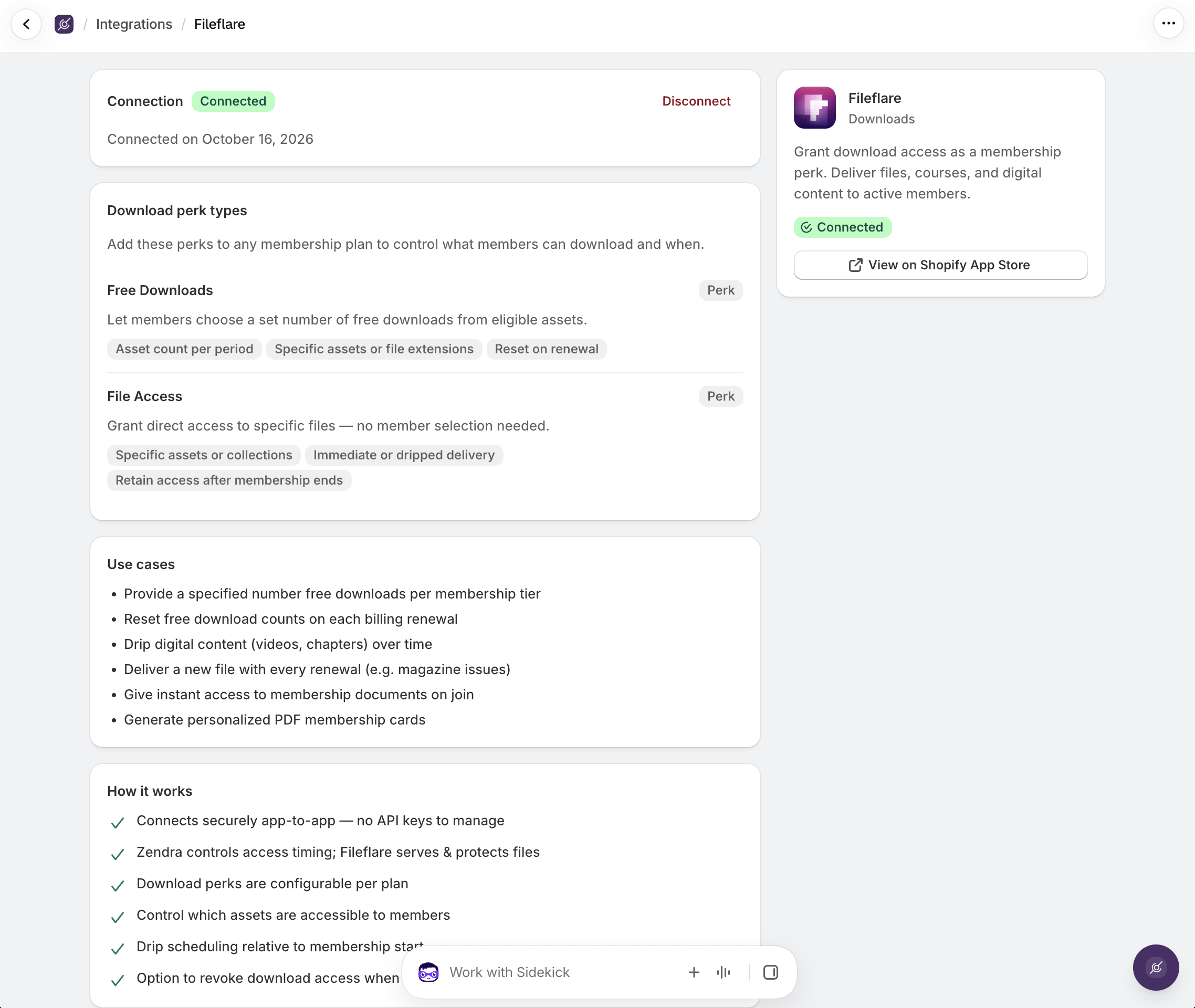
- In Zendra, go to Settings » Integrations and open Fileflare.
- Under Connection, click Connect. The two apps connect directly, with no API keys to copy.
Once connected, the card shows Connected. Fileflare’s own Settings » Integrations page shows Zendra as connected, too.
Add a Fileflare perk to a plan
Fileflare adds two perk types. A plan can have one of each.
- File access gives members a set of files for as long as they’re a member. They don’t choose anything: the files appear on their Downloads page.
- Free downloads gives members an allowance of files to pick themselves, from a pool you choose.
To add one:
- In Zendra, go to Plans and open the plan.
- In the Integrations section, add a File access or Free downloads perk.
- Under Which files, choose the files the perk covers (see below), set the perk’s options, and save.

Choose which files
Both perks pick files the same four ways:
- All files: every file in your Fileflare library.
- Specific files: only the files you choose.
- By file type: every file with an extension you choose, such as pdf or mp3. Pick a group (documents, audio, video, images, e-books, archives) or type an extension.
- By product: every file attached to the products you choose. Picking a product includes every variant it has now, plus files attached to the product itself; edit the variants to narrow it down.
File access options

- Release delay (Specific files only): hide a file until a set number of days, weeks, months, or years after the membership starts. Leave it at 0 to release a file straight away. Members see upcoming files under Coming soon, with the date they unlock. Release delays work on every Zendra plan, separately from the Growth plan’s access dripping.
- Keep access after the membership ends: when off, members lose these files as soon as their membership ends.
- Grant access to existing members: when off, only members who join after the perk is active get the files.
- Show the file list in customer accounts: when off, members see a Browse the store button instead of a file list. Use Browse the store link to send them to a page of your choice; leave it blank to send them to all products.
Free downloads options
- Limit how many files a member can pick: set the allowance. When off, members can pick any number of files from the pool.
- Reset the allowance every billing cycle (plans that sell subscriptions): members get a fresh allowance each time their subscription renews. Unused picks don’t carry over. On plans that sell one-time memberships, members get one allowance for the length of the membership.
- Keep access after the membership ends: when off, members lose their picked files when the membership ends. With the allowance resetting each cycle, last cycle’s picks are also removed at renewal unless this is on.
- Grant access to existing members: when off, only members who join after the perk is active get free downloads.
The pool never includes files a member’s File access perk already gives them, or files that haven’t been released yet. Once the allowance runs out, members can still buy files in your store as usual.
What members see
On the Membership perks card in the member portal, members get a Downloads entry on every Zendra plan. It opens one page with every file they can download, any remaining free download allowance and the date it resets, and a Coming soon filter for files on a release delay. With a Free downloads perk, members click Add more to pick files, and confirm each pick before it uses their allowance. Picking a file they already have doesn’t use another download.

Members need to be logged in to Shopify’s customer accounts, with the member portal block added. See The member portal.
When a member changes plans, their Downloads page updates to match the new plan’s perks.
Disconnecting Fileflare
To disconnect, open Settings » Integrations » Fileflare and click Disconnect, then confirm. Current members lose access to their files until you reconnect, and reconnecting gives their access back. Former members who kept access after their membership ended keep it.
Common issues
- The card says Install Fileflare. Fileflare isn’t installed on this store. Install it on the same store that runs Zendra.
- The card says Upgrade your Fileflare plan. Your Fileflare plan doesn’t include integrations. Upgrade to Lite or higher in Fileflare, then connect.
- “Connect Fileflare in the integrations settings before creating this perk.” Fileflare isn’t connected yet. Connect it under Settings » Integrations » Fileflare, then add the perk.
- “No files in Fileflare yet.” Upload your files in Fileflare first, then choose them in the perk.
- Members can’t see a Downloads entry. Check that the member portal block is on your customer account pages, that the member’s plan has a Fileflare perk, and that the files have been released.
- A member lost files from last cycle. With Reset the allowance every billing cycle on and Keep access after the membership ends off, last cycle’s picks are removed at renewal. Turn on keep access if you want picks to accumulate.
Keep learning
- Membership perks (every perk you can add to a plan)
- The member portal (what members see in their customer account)
- Discord (Zendra’s other integration perk)
- Zendra integration in the Fileflare docs (the Fileflare side: connection status, delivery, and download limits)
- Recurring billing & subscriptions (billing cycles, which set when a Free downloads allowance resets)