

Zendra’s Discord integration connects your membership program to your Discord community. When a member is active on a plan with Discord access, they automatically receive the roles you’ve configured — which can unlock private channels, permissions, and other capabilities within your server.
When a membership ends, roles can be removed automatically (with an optional grace period), so access stays in sync without any manual work.
Discord is available on the Growth plan. If you’re on a different plan, you’ll see a lock icon on the Discord card in Settings > Integrations indicating the required plan.
When you’d use this
- Give members access to a private Discord community.
- Sync Discord roles to membership plans automatically.
- Remove community access when a membership ends.
Connecting your Discord server
Before you can use Discord as a perk, you’ll need to connect your Discord server to Zendra.
- In Zendra, go to Settings > Integrations.
- Find Discord and click Connect Discord server.
- You’ll be redirected to Discord to authorize the Zendra bot. Select the server you want to connect, then click Authorize.
The bot requires a few permissions to manage roles on your behalf: Manage Roles, Kick Members, Create Instant Invite, and View Channels. These are requested automatically during the authorization flow.
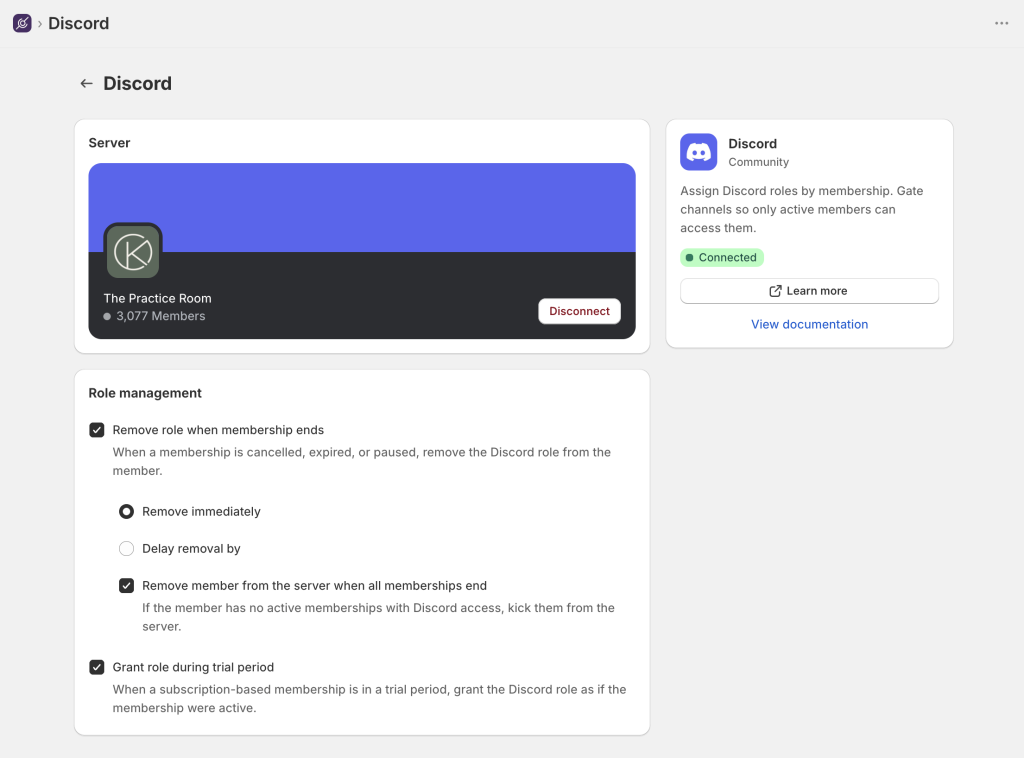
Once connected, you’ll see your server’s name and icon on the Integrations page, confirming the connection is active.
Role management settings
On the Discord integration settings page, you can control what happens when a membership ends:
- Remove role when membership ends — Enabled by default. When a membership ends or is paused, the assigned roles are removed from the member in Discord.
- Removal delay — Optionally wait a number of days before removing the role. This gives members a grace period — useful if you want to allow time for resubscription before they lose access. If the member resubscribes during this window, the removal is skipped automatically.
- Remove from server — If enabled, members are removed from the Discord server entirely once they have no active memberships with Discord perks. Disabled by default.
- Grant role during trial — Enabled by default. Members on a free trial receive Discord roles right away, rather than waiting until their first payment.
Adding Discord access to a plan
With your server connected, you can add Discord access as a perk on any membership plan.
- Go to Plans and open the plan you want to configure.
- In the Integrations section, add a Discord access perk.
- Select one or more roles from the picker — these are pulled directly from your Discord server. You can also create a new role from this screen if needed.
- Give the perk a label (this is what members see in their portal, e.g. “Discord access” or “Join our community!”).
- Save the plan.
Each plan can have one Discord access perk, but that perk can assign multiple roles. If you have tiered plans (e.g. Silver, Gold, Platinum), each tier can grant different roles with different channel access.
The member experience
Once you’ve added a Discord access perk to a plan, members will see a Discord section in the member portal when viewing that membership’s perks.
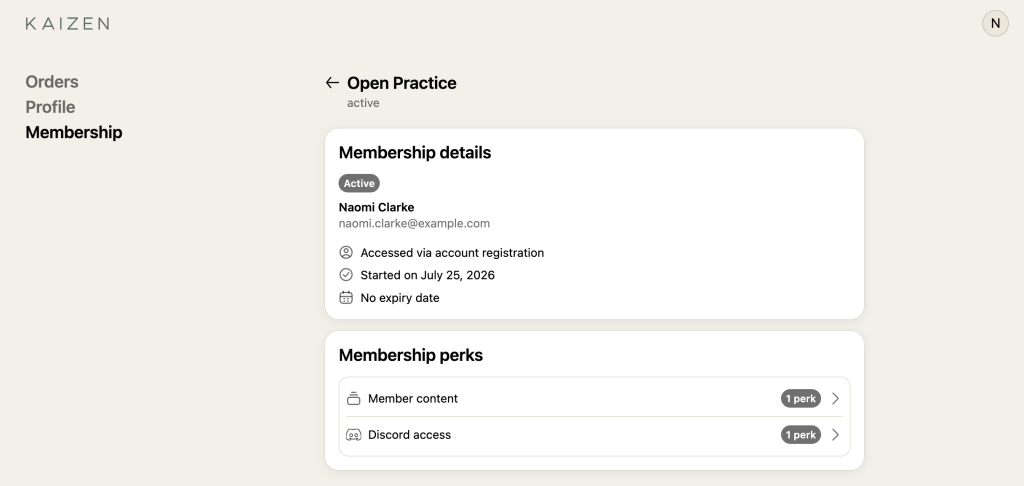
Connecting for the first time
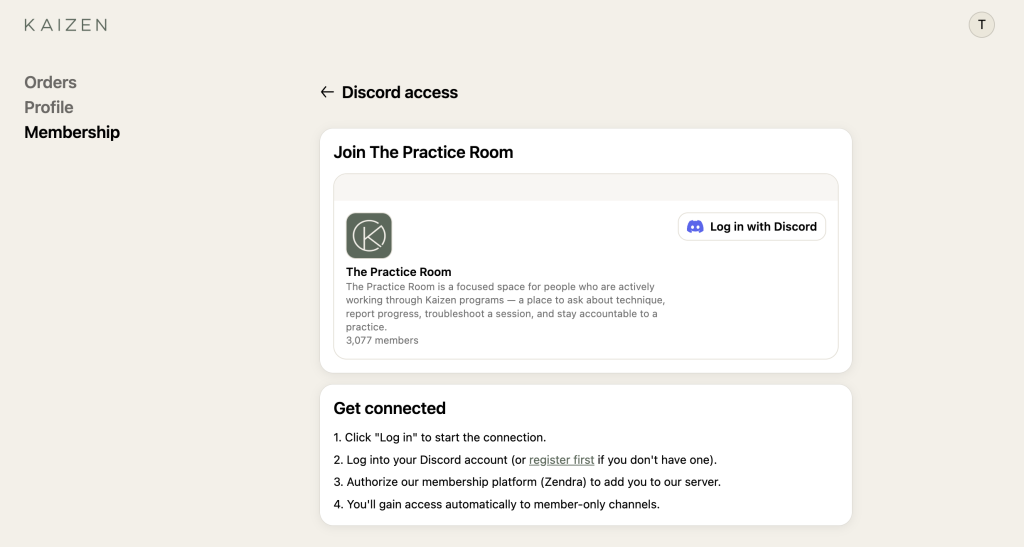
When a member hasn’t connected their Discord account yet, they’ll see your server’s name, icon, description, and member count — along with step-by-step instructions and a Log in with Discord button.
Clicking the button opens a Discord authorization popup. The member logs in (or creates an account), authorizes Zendra to add them to your server, and they’re done.
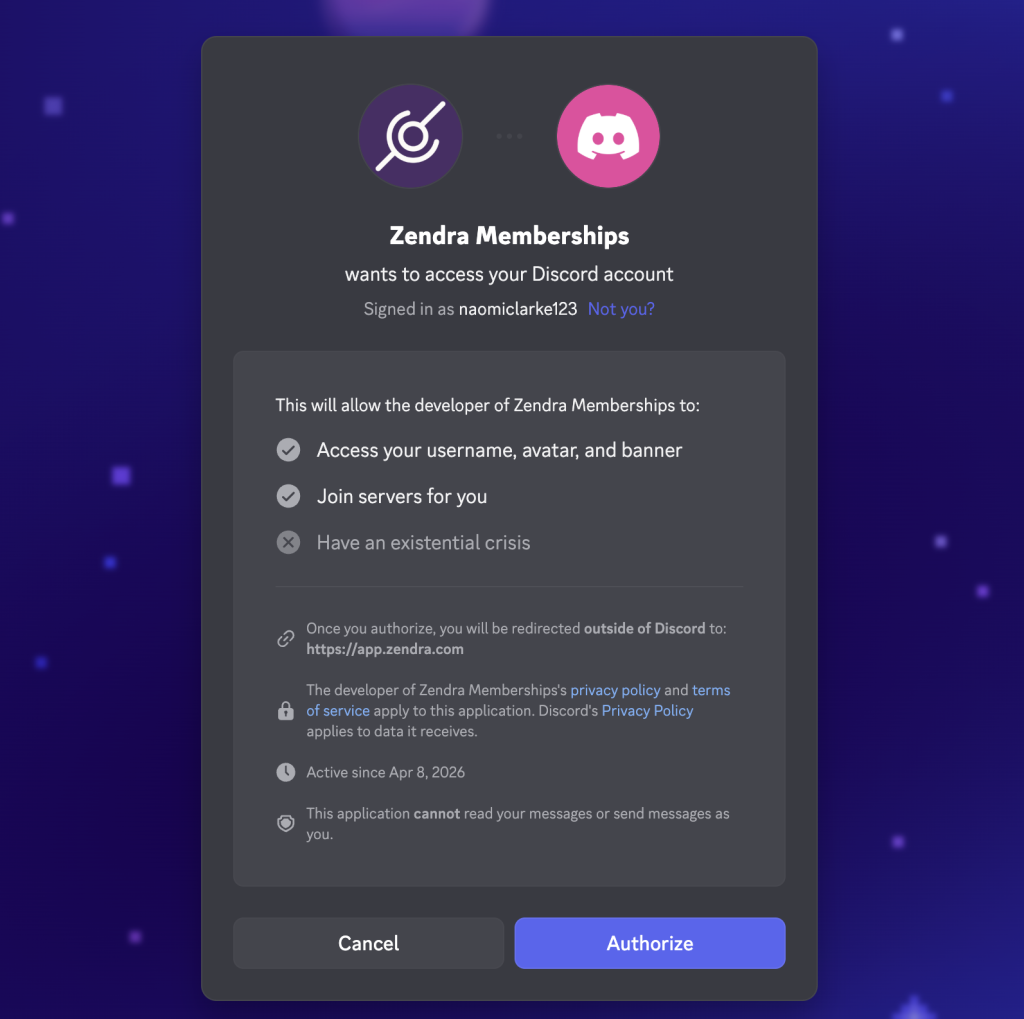
This part will show the Zendra app name rather than your store. This is due to how the Discord API works: our connector app is what adds members and manages roles, so the member sees its name when initially joining.
Zendra handles the rest — the member is added to your server and assigned the correct roles immediately.
After connecting
Once connected, the portal shows a Connected badge and an Open Discord button that takes the member directly to your server.
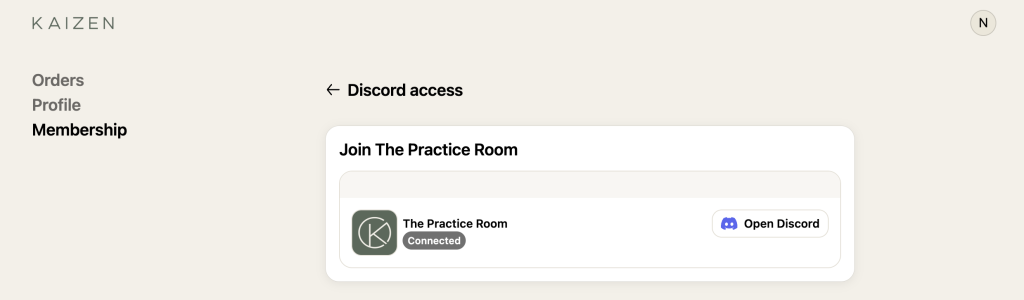
The server card displays the banner image, icon, and description from your Discord server settings — so make sure those are set up the way you want members to see them.
What happens automatically
Members don’t need to do anything beyond the initial connection. From there, Zendra keeps their roles in sync in the background:
- Membership activates — roles are granted
- Membership renews — roles stay in place
- Membership is cancelled, paused, or expires — roles are removed (according to your settings)
- Member upgrades or downgrades — roles update to match the new plan
If a member disconnects their Discord account (by revoking access through Discord’s settings), the connection button will reappear in their portal so they can reconnect.
Important: bot role hierarchy in Discord
For Zendra to manage roles, the Zendra Memberships bot role must be positioned above the roles it needs to assign in your Discord server’s role list.

To check this, go to Server Settings > Roles in Discord. Drag the Zendra Memberships role above any roles you’ve assigned to membership plans. If the bot role is below a managed role, Discord will block the assignment and Zendra will show a warning on the Discord perk settings page.
If the bot is missing required permissions (such as Manage Roles or Create Instant Invite), Zendra detects this and surfaces a warning in the integration settings, on the plan’s integrations section, and on the perk configuration screen. Follow the on-screen instructions to reconnect in order to fix the permissions in your Discord server settings.
Common issues
- Roles aren’t being assigned. Check the bot role hierarchy — the Zendra bot’s role must sit above any roles it manages (see the section below).
- A member wasn’t added to the server. They need to connect their Discord account from the member portal first.