

Welcome! We’re so excited to help you accelerate growth with a membership program. If you’re still deciding what your program should look like, start with our planning guide for a new membership program.
When you’d use this
- Install Zendra on your Shopify store.
- Understand what you can do with it before you build.
- Get from install to your first membership plan.
You can use Zendra to…
- Give access to a free membership or loyalty program, either as a VIP or invite only program, or as a reward for registering or signing up for an account.
- Sell lifetime or expiring access (e.g. 1 year) to perks for your program.
- Sell subscriptions to your membership access, perks, or products (such as a “subscribe & save” model).
- Automate membership workflows with Shopify Flow — like granting memberships or store credit based on customer actions.
Any membership can offer perks! Give your members automatic discounts, exclusive or early product access, protected or paywalled content and videos, free or reduced shipping, and access to protected shipping options (like expedited shipping).
And of course, your membership can be just for digital access, or members can subscribe to a product to get recurring deliveries — combine subscribe & save, digital access, and loyalty programs into a single, cohesive membership experience.
Zendra automatically creates customer segments and syncs membership data to Shopify metafields, so you can target members in marketing campaigns, analytics, and Flow automations. Zendra supports 20+ languages out of the box, so your international customers will feel right at home.
Install Zendra
Let’s walk through how you can add Zendra to your store:
- Install the app in your Shopify store.
- Accept the permissions for the app to access your store’s data. We request access to orders, customers, products, content, and more so that Zendra can seamlessly handle granting membership access and managing protected content completely for you. No further code or set up!
- Start your program. Your Zendra dashboard opens with Zendra Assistant: describe what you want your membership to do, and it recommends a structure and builds your first plans as drafts for you to review. If you’d rather set things up by hand, click I’d rather do it myself to use the onboarding checklist instead:
- Add the Zendra membership widget to your product pages. This lets visitors buy any subscriptions you want to offer, if attached to a product listing.
- Add the customer account block. This creates a membership portal so that any members can view membership details and lists of their perks (paid plans).
- Create your first plan. This controls
- triggers (how a customer becomes a member),
- billing (if you want to offer recurring billing or subscriptions, alongside or instead of one-time purchases, and
- perks (what benefits members get on your site)
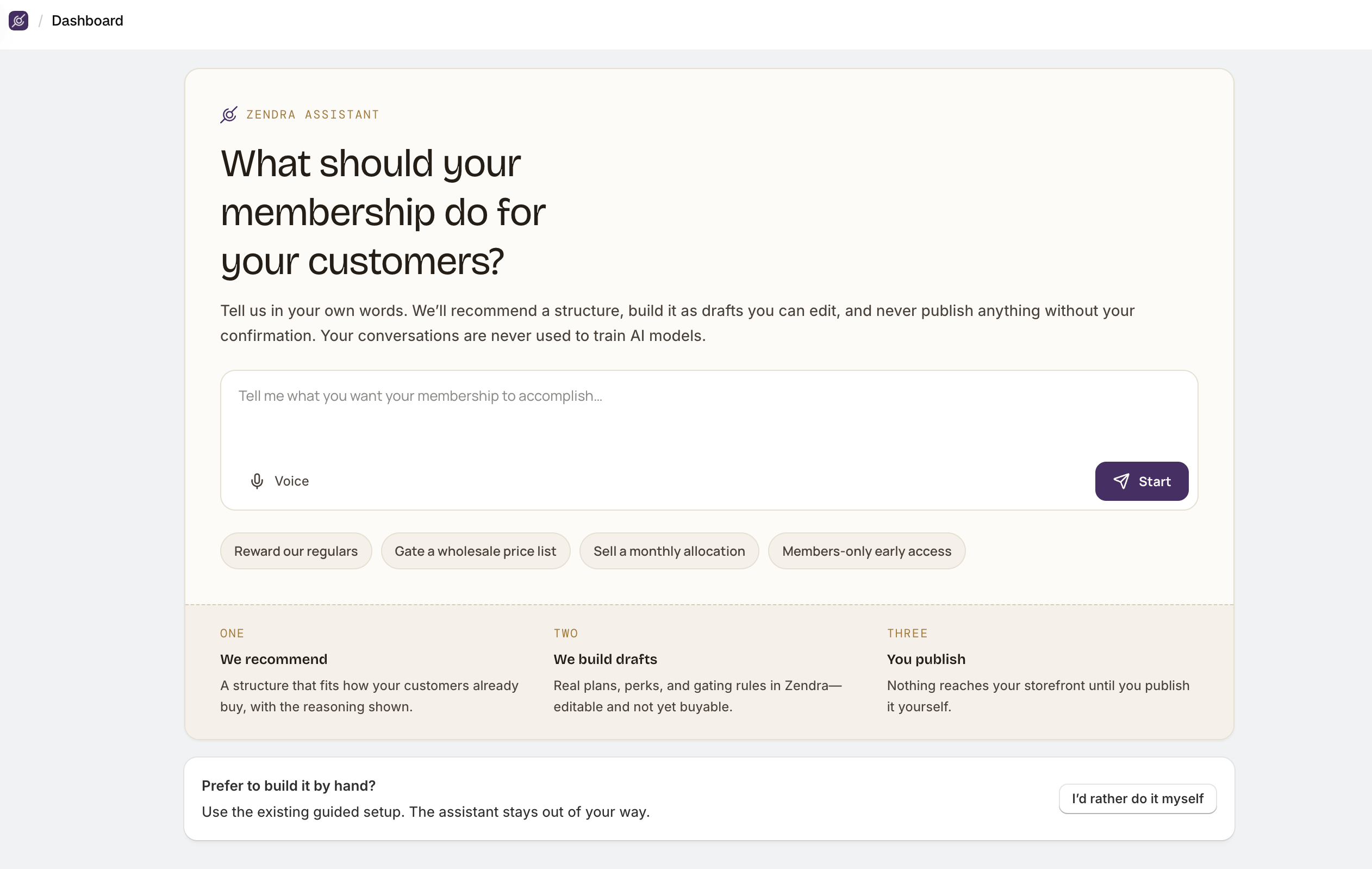
That’s it! You can learn more about product, plan, and perks setup if you’d like to get the nitty gritty details on how to use Zendra’s access controls, or check out our recipes for common membership models.
Common issues
- Zendra isn’t showing after install. Refresh the Shopify admin; the app appears under Apps once installed.
- The membership widget isn’t on your product page. Add the Zendra app block in the theme editor — see Zendra app blocks & widgets.